


Installation
- Click on ‘Install’ and download the App.
- If you see ‘App Blocked to Protect Your Device’:
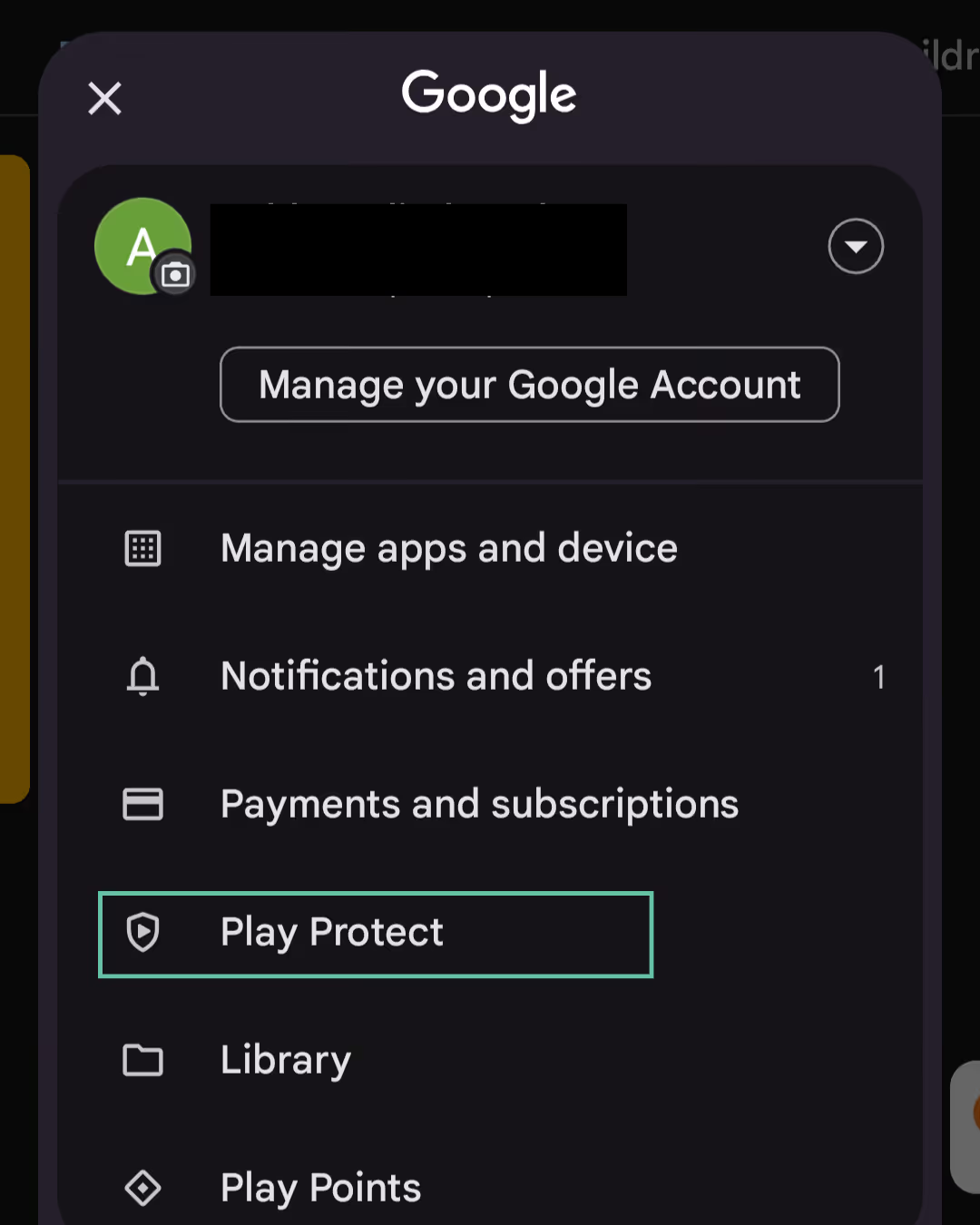
- Open Play Store
- Profile (top right) > Play Protect
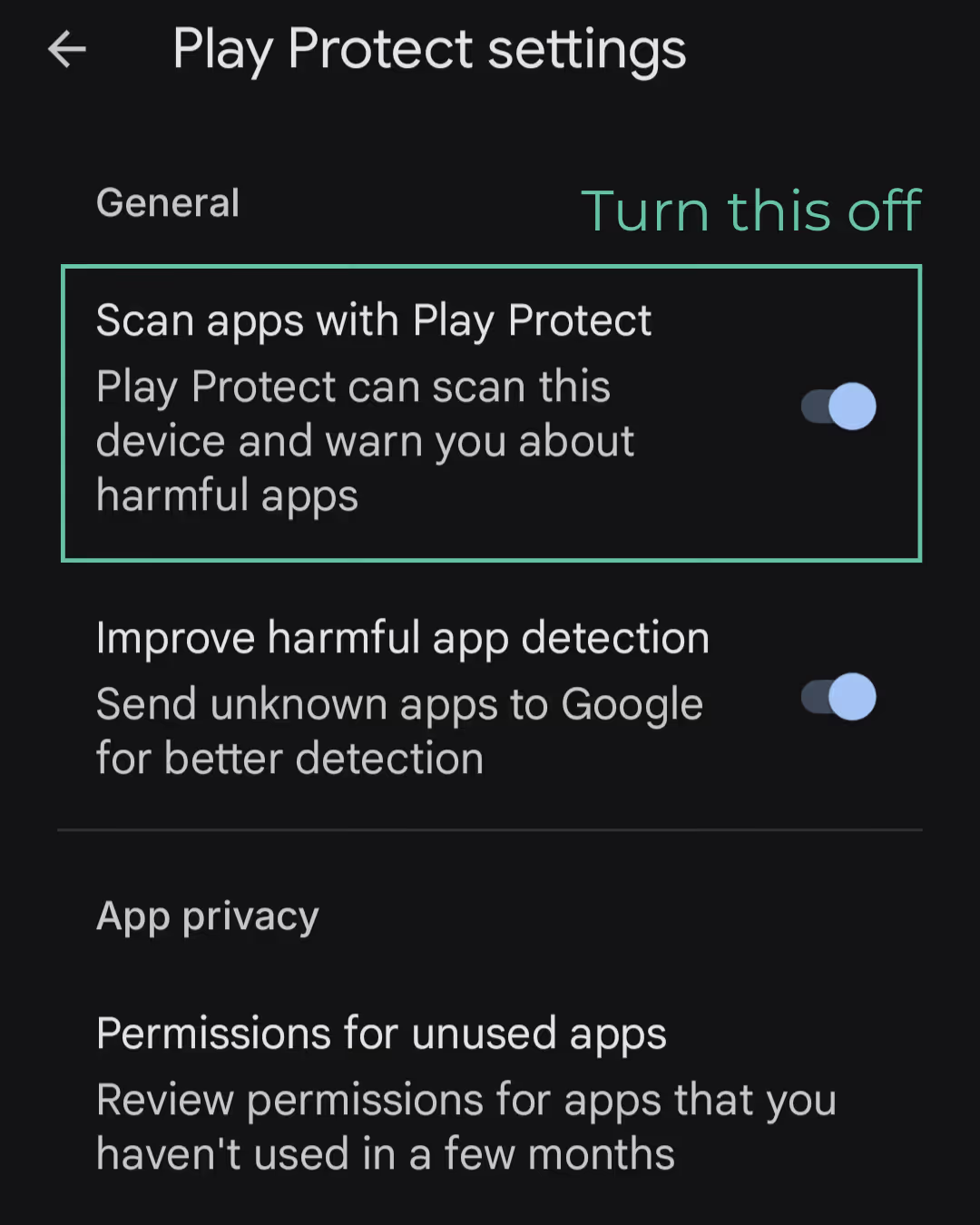
- Settings (top right)

- Pause/Turn off ‘Scan apps with Play Protect’
Login
- Click ‘Login with Superleap’.
- The Superleap app will open automatically → tap ‘Allow’ on the authentication request.
- You’ll be logged in.
Recording Preferences
- Choose a recording method:
- SLP Recorder
- Folder
- Google Recording
- Click ‘Next’.
- When prompted, allow ‘Call Logs and Phone Call permissions’.
- Then, select the SIM you want to use for logging and recording calls.
- Click on ‘Complete’.
Permissions
- Next, you’ll be prompted with Ignore Battery Optimization (or Let the app run in background) → click ‘Allow’.
- Then, allow the following permissions:
- Record Audio
- Contacts
- Music & Audio Access
Accessibility Service
Note: Without accessibility service you won't be able to log or record calls.
Click on ‘Enable Accessibility Service’.
Case 1:
- Accessibility Service is turned off and disabled and it says, ‘Controlled by restricted settings’
- Click on the SLP Recorder (it's important to click on it).
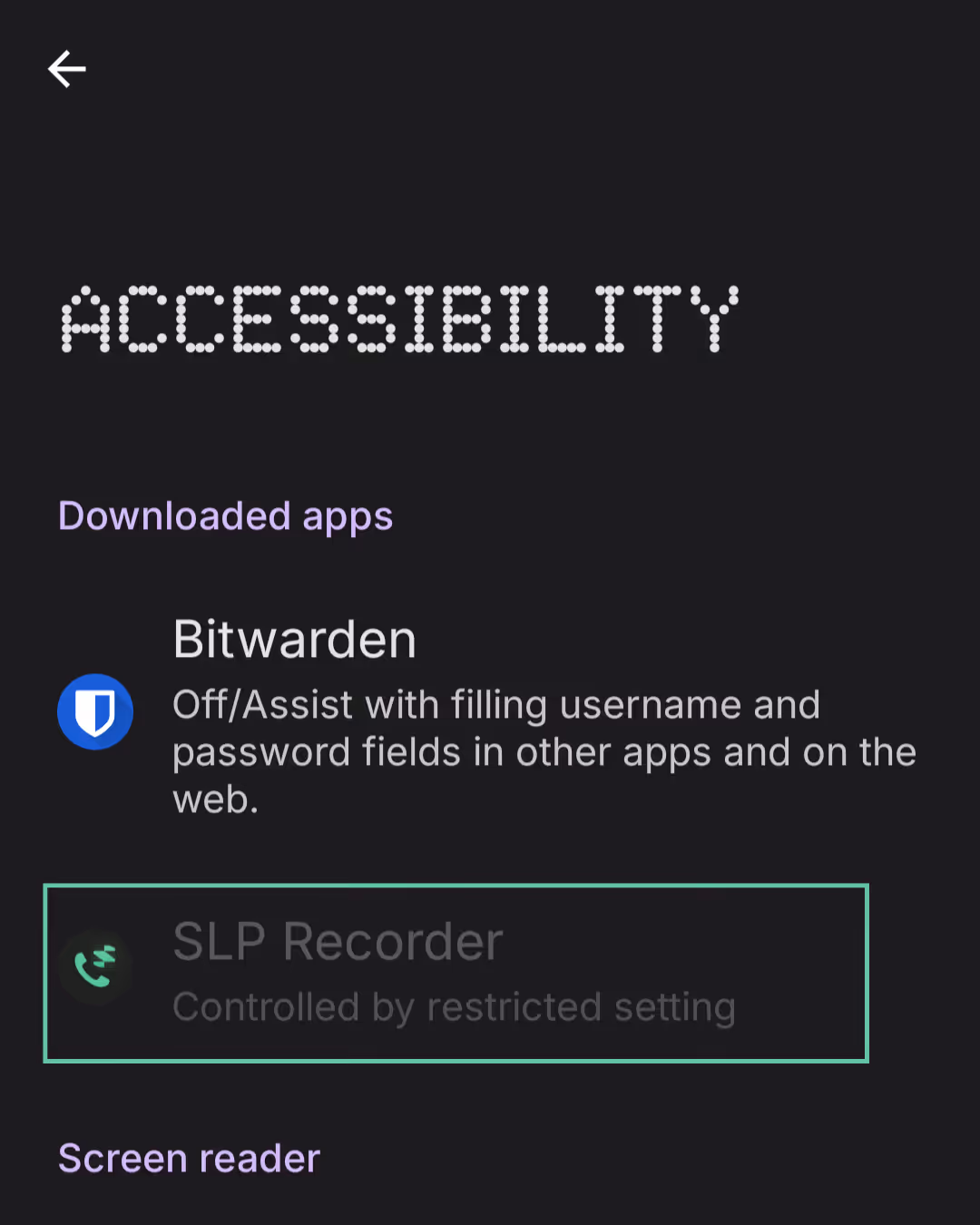
- You’ll see ‘App was denied access’.
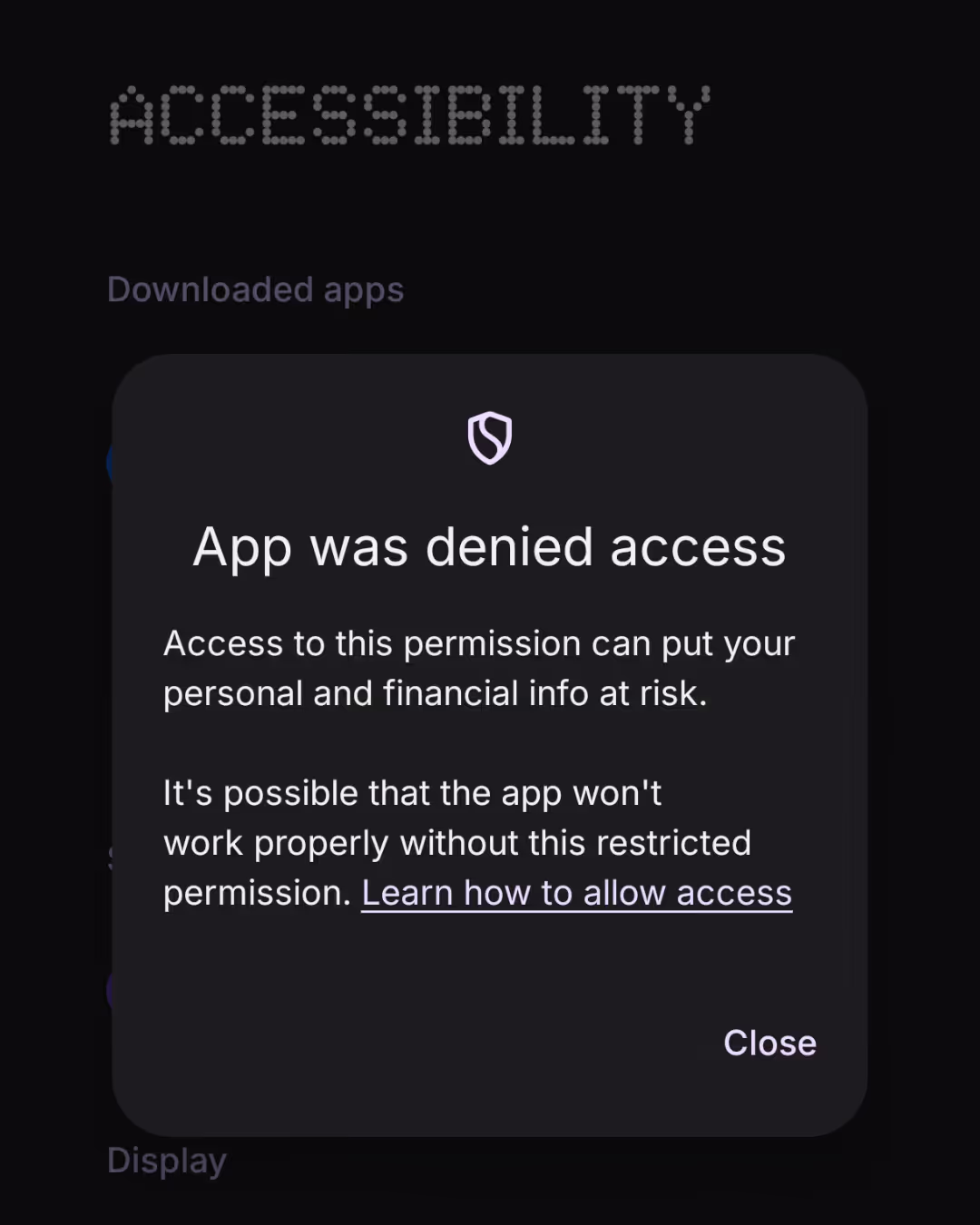
To fix this:
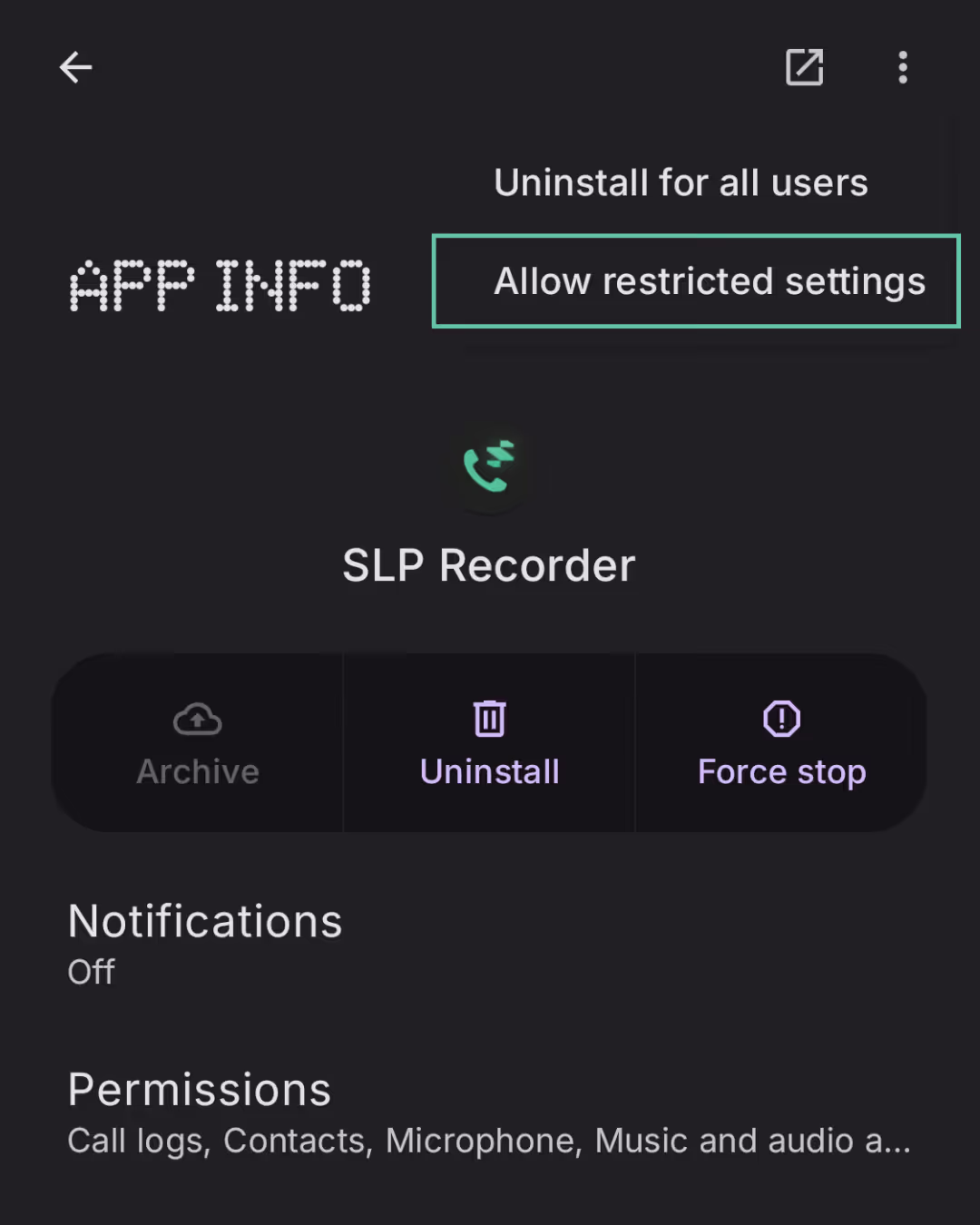
- Long press the SLP Recorder app in your home screen → App Info
- Tap the three dots (or scroll down) → Allow Restricted Settings
Case 2:
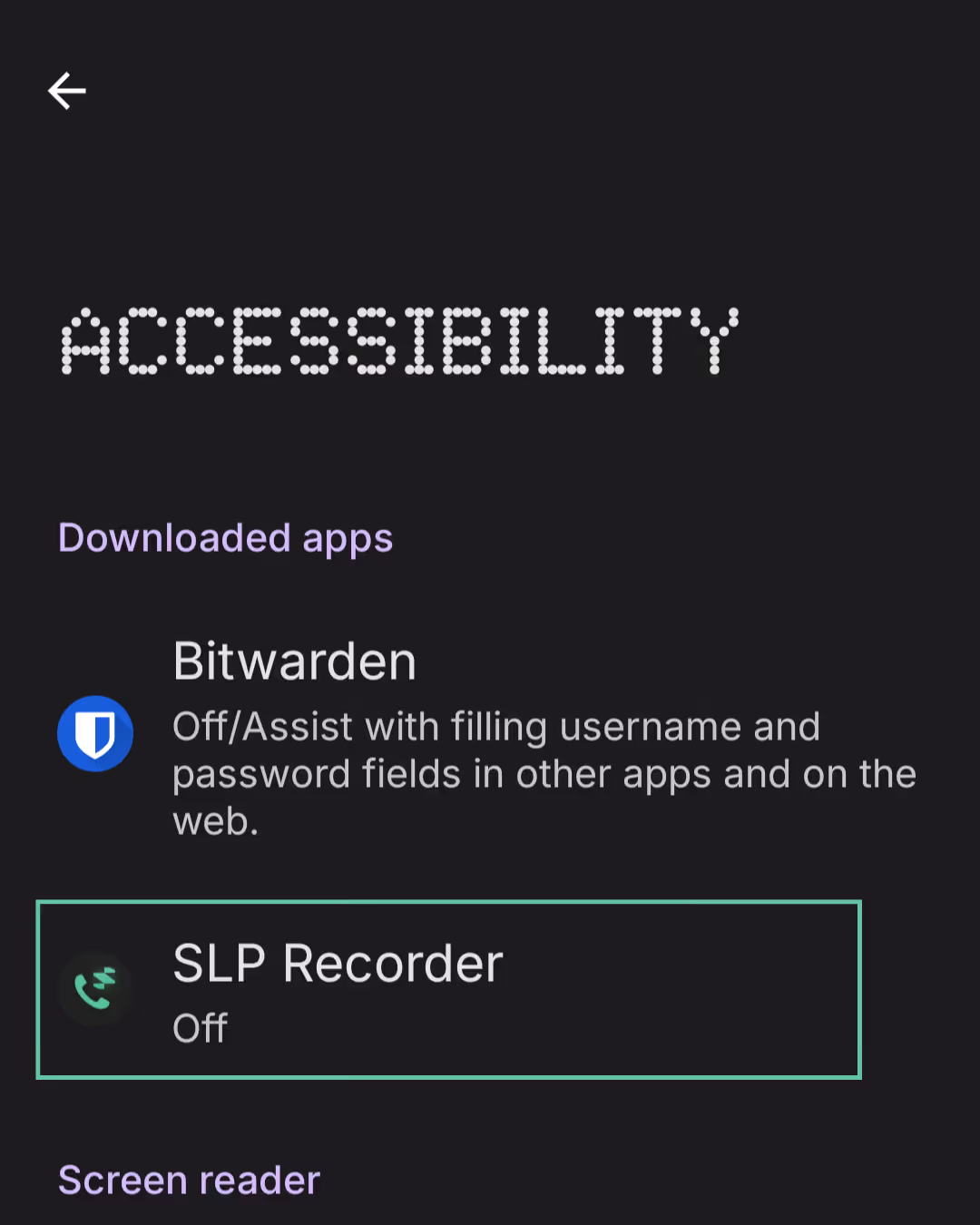
Accessibility Service is turned off and to enable it, you can:
- Click on SLP Recorder.
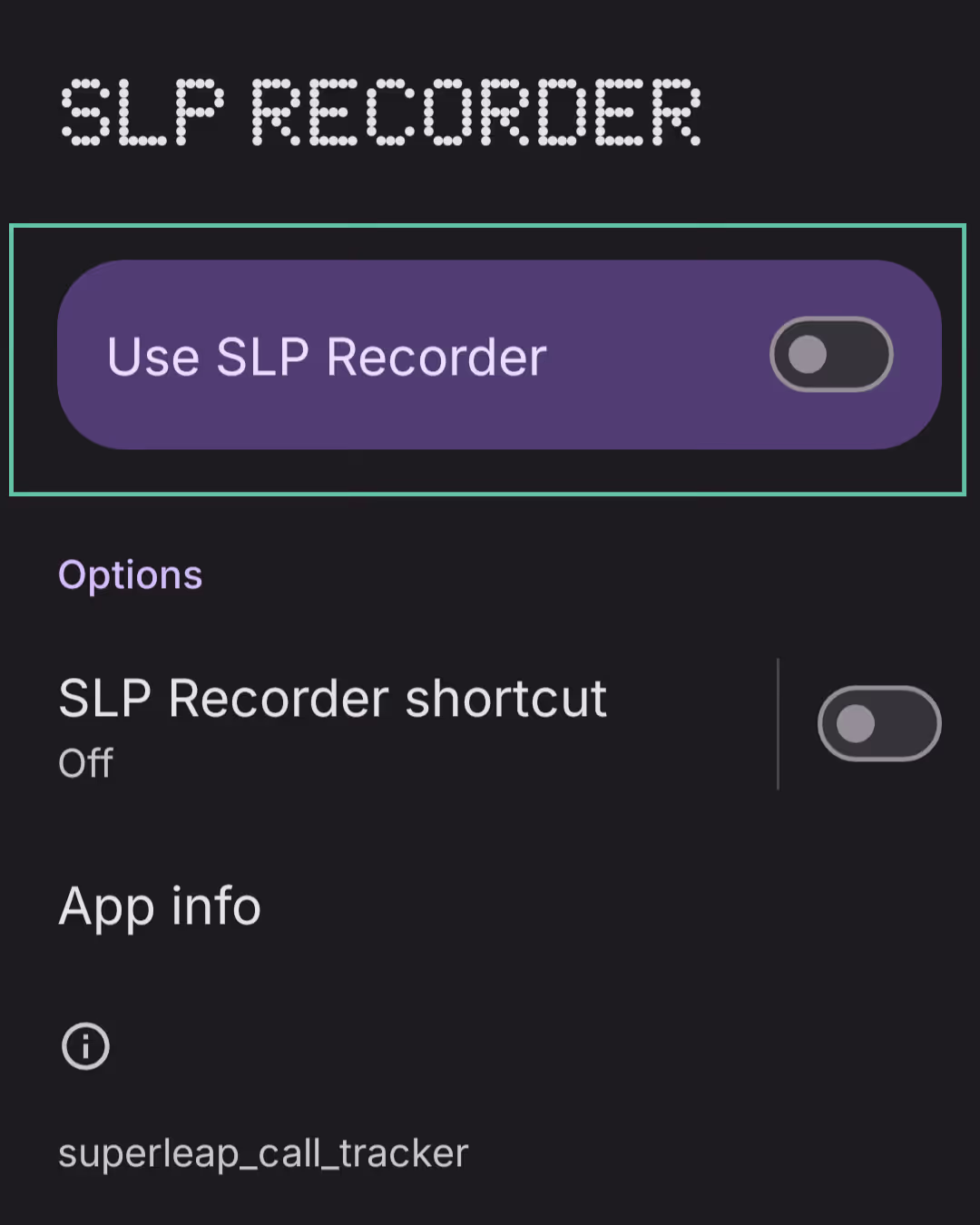
- Toggle/enable the service when prompted.
Final Check
Go back to the SLP Recorder.
If it shows ‘Accessibility service is enabled ✅’, you’re all set and can now use the app properly.



Thank you! Your submission has been received!
Oops! Something went wrong while submitting the form.


%201%20(1).svg)
.svg)
.svg)
.svg)
.svg)